How to Add Data Sources
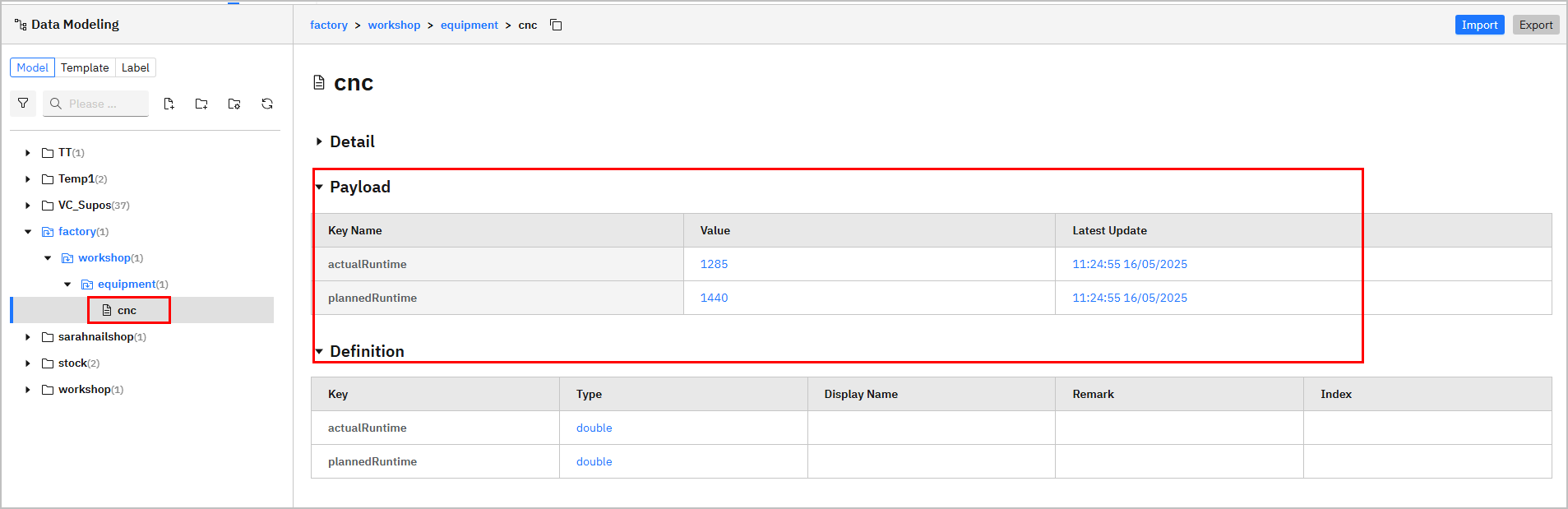
Once the data model is built under Namespace, you need to connect real data to the model for subsequent processing and use.
Adding Data Flow Manually
- Log in to Tier0, go to UNS > Source Flow.

| Index | Item | Description |
|---|---|---|
| 1 | Search | Search for existing data flows. |
| New Source Flow | Add a data flow. | |
| 2 | Flow List | Displays flow information. Click the flow name to start editing the data flow. |
| 3 | Display | Switch flow display between blocks and list. |
| 4 | Flow Operations | Copy / Edit / Delete the data flow. |
- Click New Source Flow, enter a name and click Save.
- Click the flow you just added, and drag in nodes according to your data source type (e.g.
modbus). - Drag in an
mqtt outnode, and finish its configurations.
Add the internal broker via
emqx:1883.
Set its subscription topic to the data model in Namespace.
For example, the data model structure is
factory/equipment/cnc, the topic will befactory/equipment/cnc.
- Click Deploy at the upper-right corner, trigger the flow and the data will be sent to corresponding model under Namespace.
Configuring Data Source through Generated Flow
note
Data flow will only be automatically generated when you select Mock Data while creating topics.
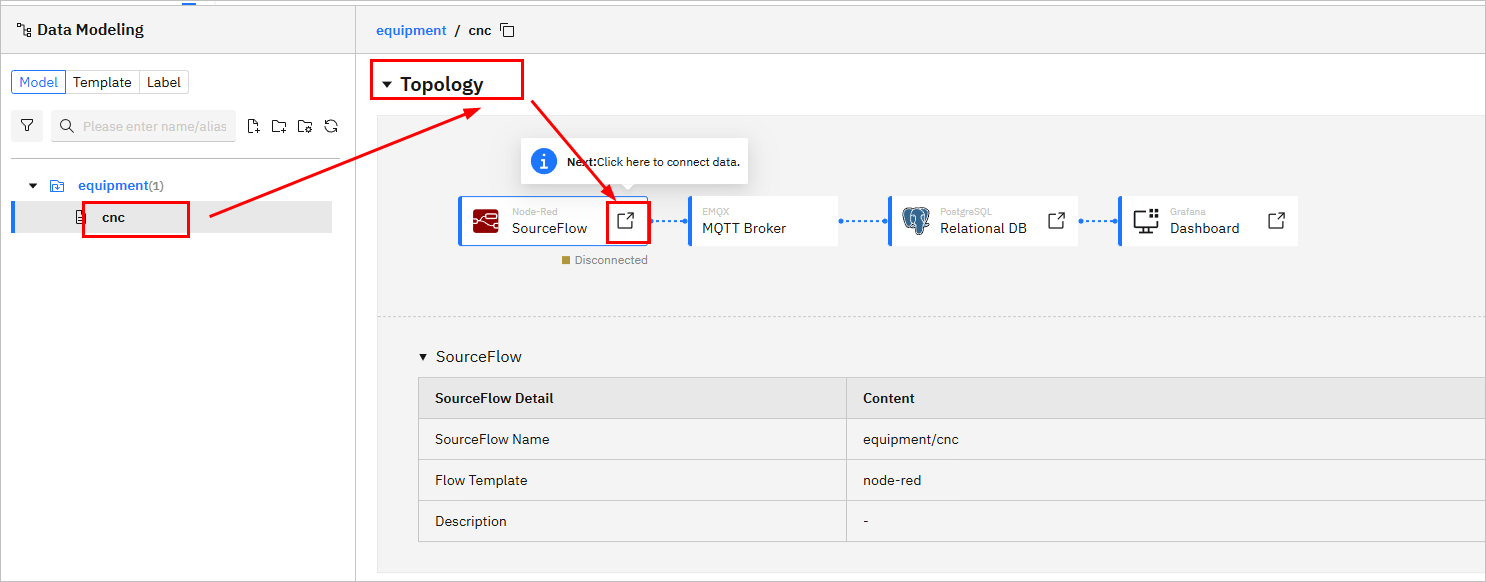
- Log in to Tier0, landed on the Namespace page, and under the Topic tab, select a file.
- Scroll down to Topology Map, click the icon on Source Flow to redirect to the generated data flow under Source Flow.
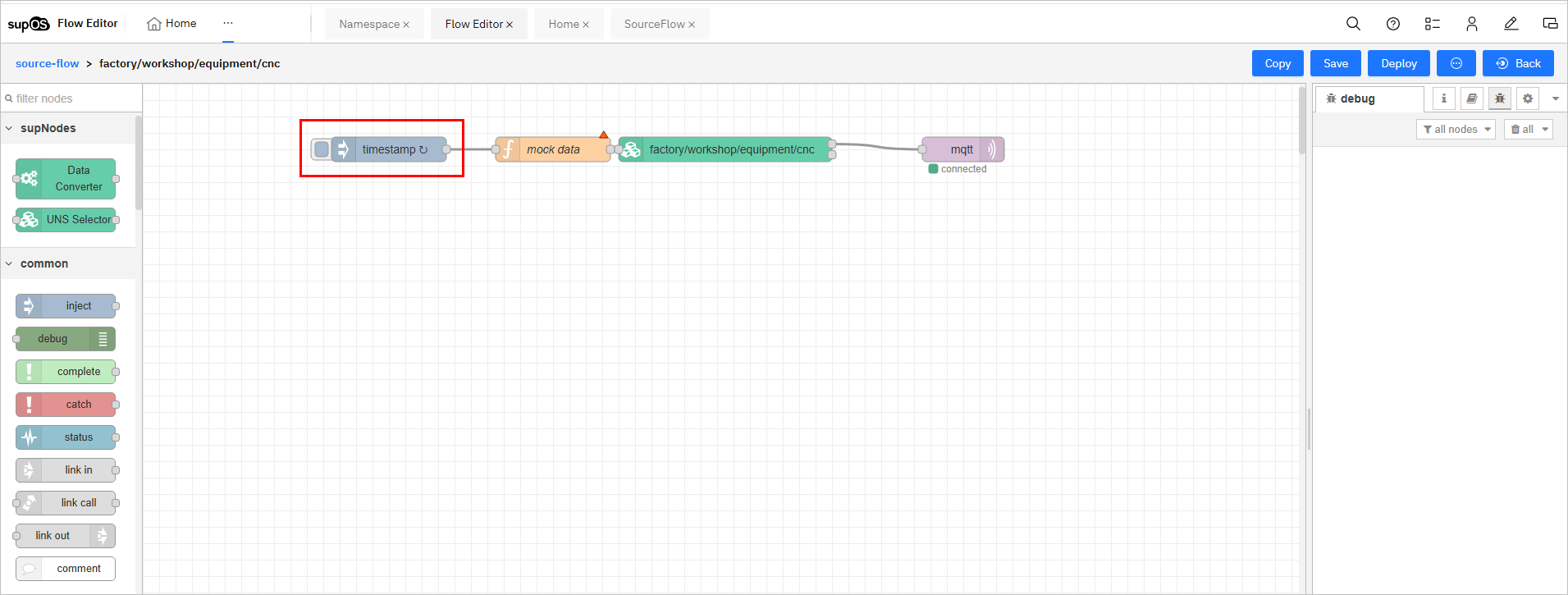
- Change the data source of the generated flow.
info
Make sure the returned data of the source node is JSON object. Currently, Tier0 can only parse this data type.
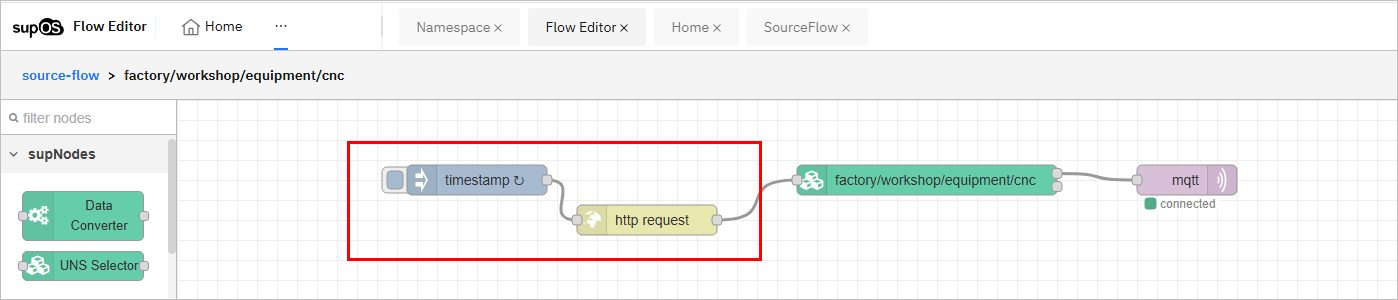
- Delete the
mock datafunction node and connect the source node to the rest of the flow.
- Click Deploy at the upper-right corner, and then trigger the flow.
- Go back to Namespace, check whether the data is received.