Build Data Models
Tier0 uses UNS (Unified Namespace) to organize data into a clear tree structure. Each path and topic in the model automatically generates an MQTT topic, making it easy to get real-time data.
Additional Parameter Definition
- Path-Additional Settings
| Item | Description |
|---|---|
| Extended Attribute | Add extended attributes for the path. Eg. unit. |
| Template | Select a template to inherit attributes from it. See Building Template. |
| Generate Template | Click  to add an attribute to the path, at the same time you can select to generate a same template for future use. to add an attribute to the path, at the same time you can select to generate a same template for future use. |
- Topic-Topic Type
| Type | Description |
|---|---|
| State | Works as an API to receive system state data. |
| Action | Works as an API to execute CRUD commands. |
| Metric | Real-time data. For example, equipment temperature. |
- Topic-Attribute Generation Method
| Attribute Generation Method | Description |
|---|---|
| Pre-defined | Customize attributes. |
| Template | Inherit attributes from the selected template. |
| Auto-Parsed | Use JSON text to generate attributes with the same structure. |
- Topic-Linked Operation
| Item | Description |
|---|---|
| Enable History | Enable historical data storage for the topic. |
How to Build a Data Model
Based on simple folder-file structure, you can define the data hierarchy to a tree map.
Building Models Manually
factory/equipment/CNC will be used as an example, in which factory and equipment are paths and CNC is a topic.
- Log in to Tier0, landed on the Namespace page.
- Under Topic, click
 > New Path to add a path (e.g.
 factory).

-
Enter the path information, set the alias as needed, and then click Save.
-
Select equipment, and then click
> New Topic to add a topic (e.g.CNC) under it.

- Enter the information of the topic, and then click Save.
Importing Models
- Log in to Tier0, landed on the Namespace page.
- Click Import at the upper-right corner.
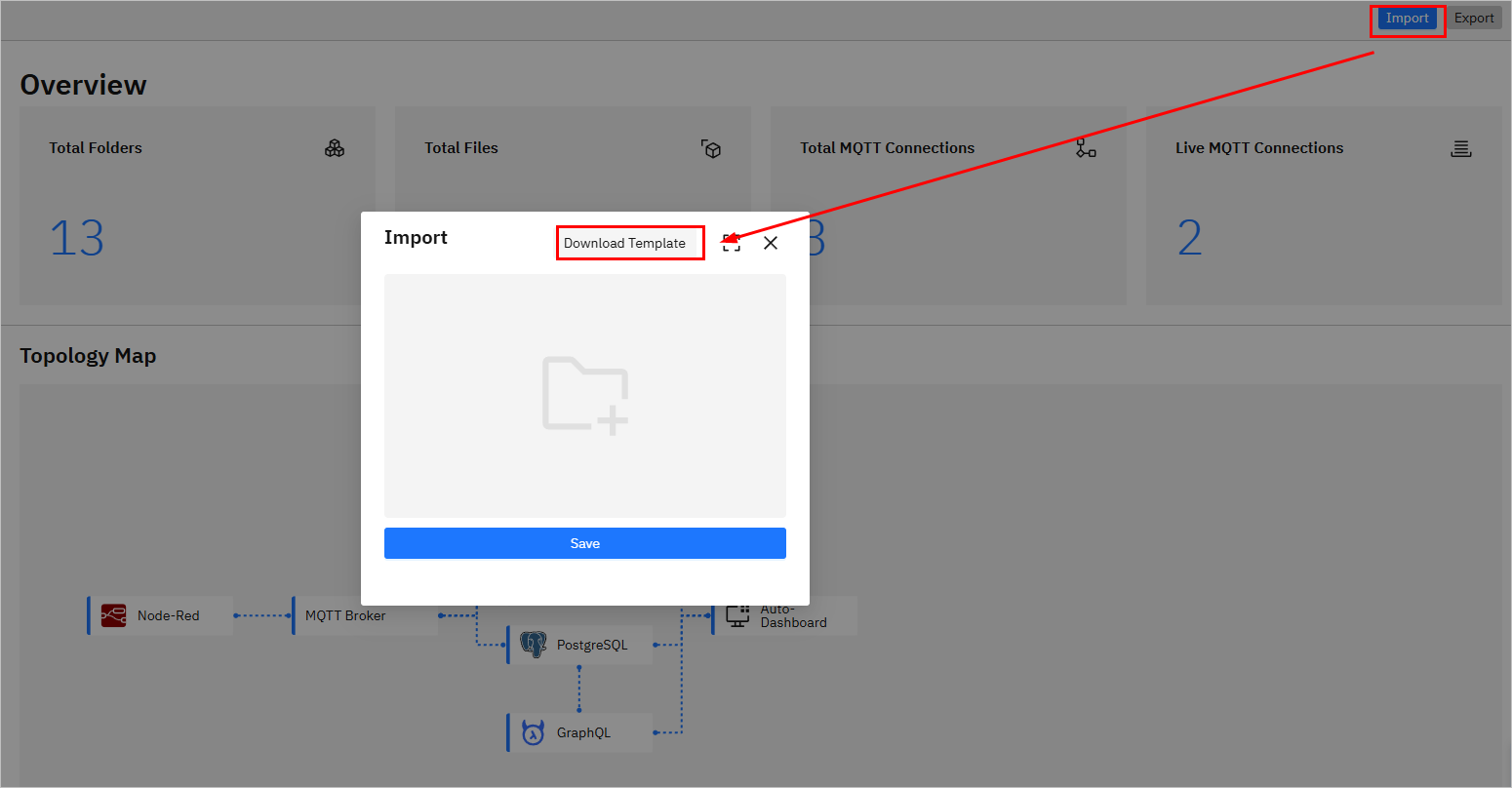
- Import JSON to create models.
- Click UNS, and directly enter JSON.
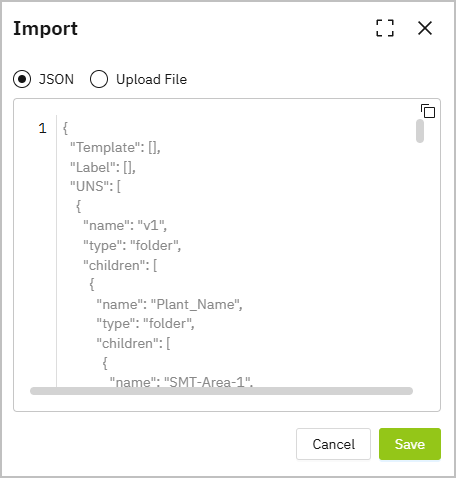
- Click Download Template at the UNS tab, enter the model content and upload it at the All tab.
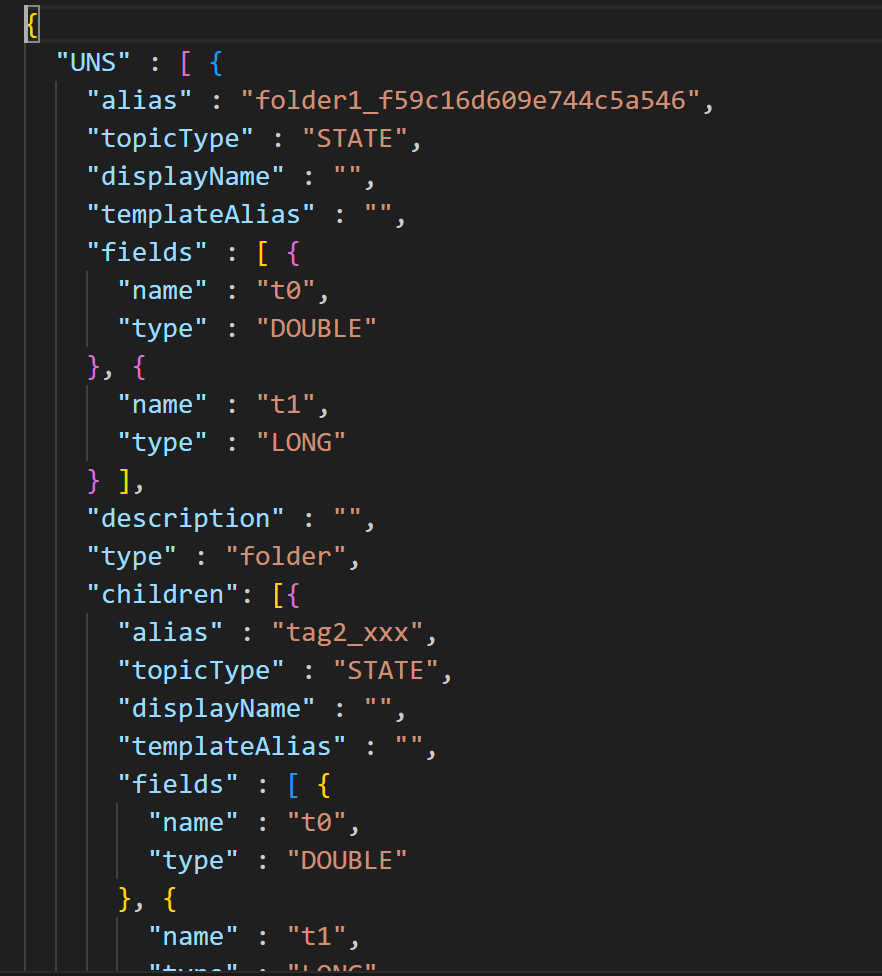
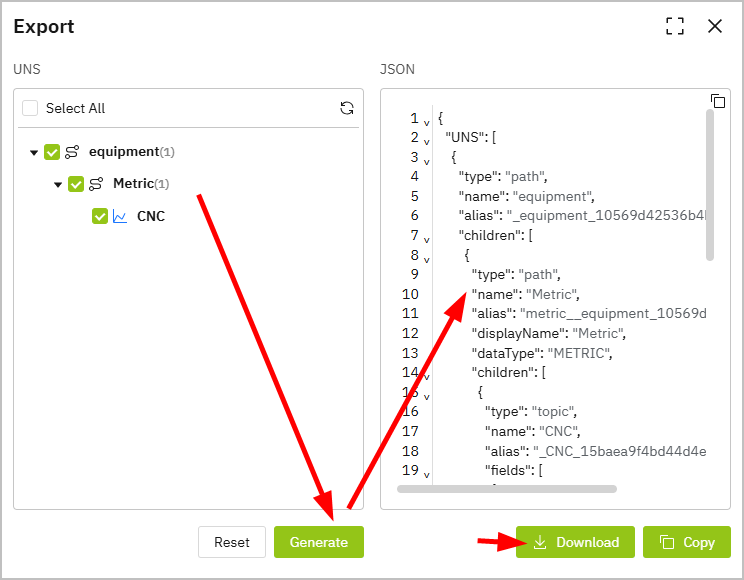
You can manually add a path and topic, export it and use it as an example for import.
- Click Save.
Optional Features
Building Template
- On the Namespace page, click Template.
- Click
 , and then enter the information of the template.
Click Source to select added models and inherit their attributes.

- Click Save.
Creating Label
Labels are used for categorizing data models.
- On the Namespace page, click Label.
- Click
 , and then enter the label name.
 - Click Save, and then click
 to add topics under the label.
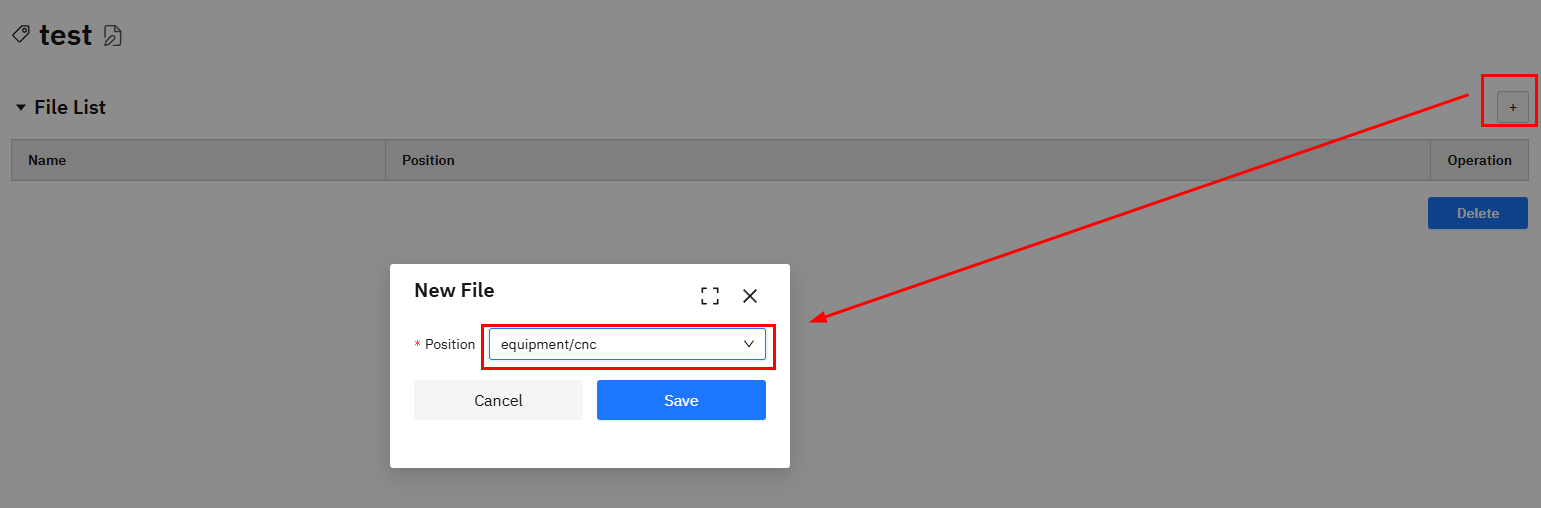
- Click Save.
Exporting Data
Tier0 can export UNS models and other data, such as source flows, event flows, and data dashboards.
- On the Namespace page, click Export at the upper-right corner.
- Click the Others tab and select the corresponding data type.
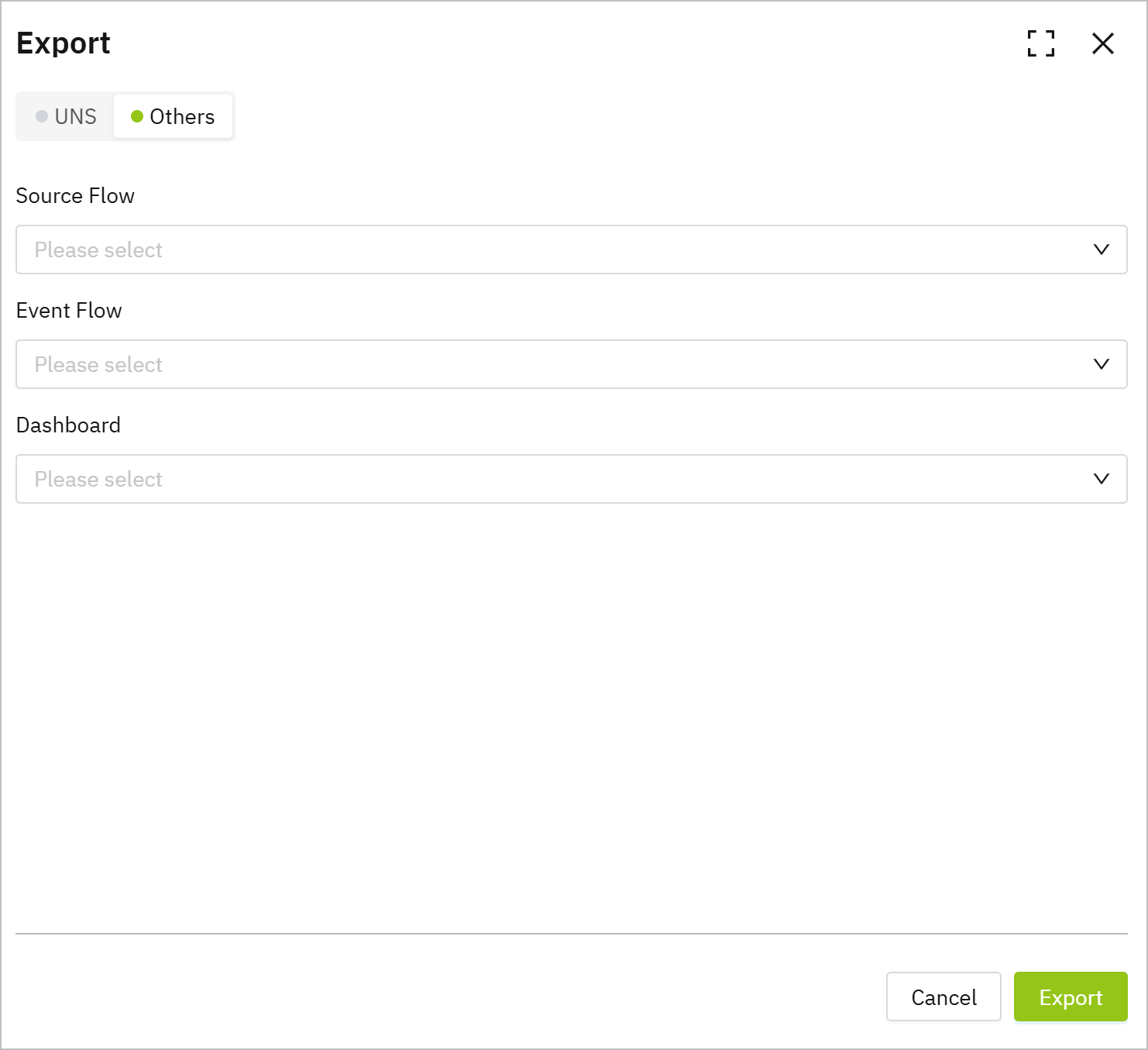
- Click Export.