Tier0 enables basic configuration on function modules in the style of menus, including module position, visibility, and detailed information. Meanwhile, it can be used as an application manager where you can add and configure your web app on Tier0.
Adding Menu
- Log in to Tier0, and then select System > Menu Config.
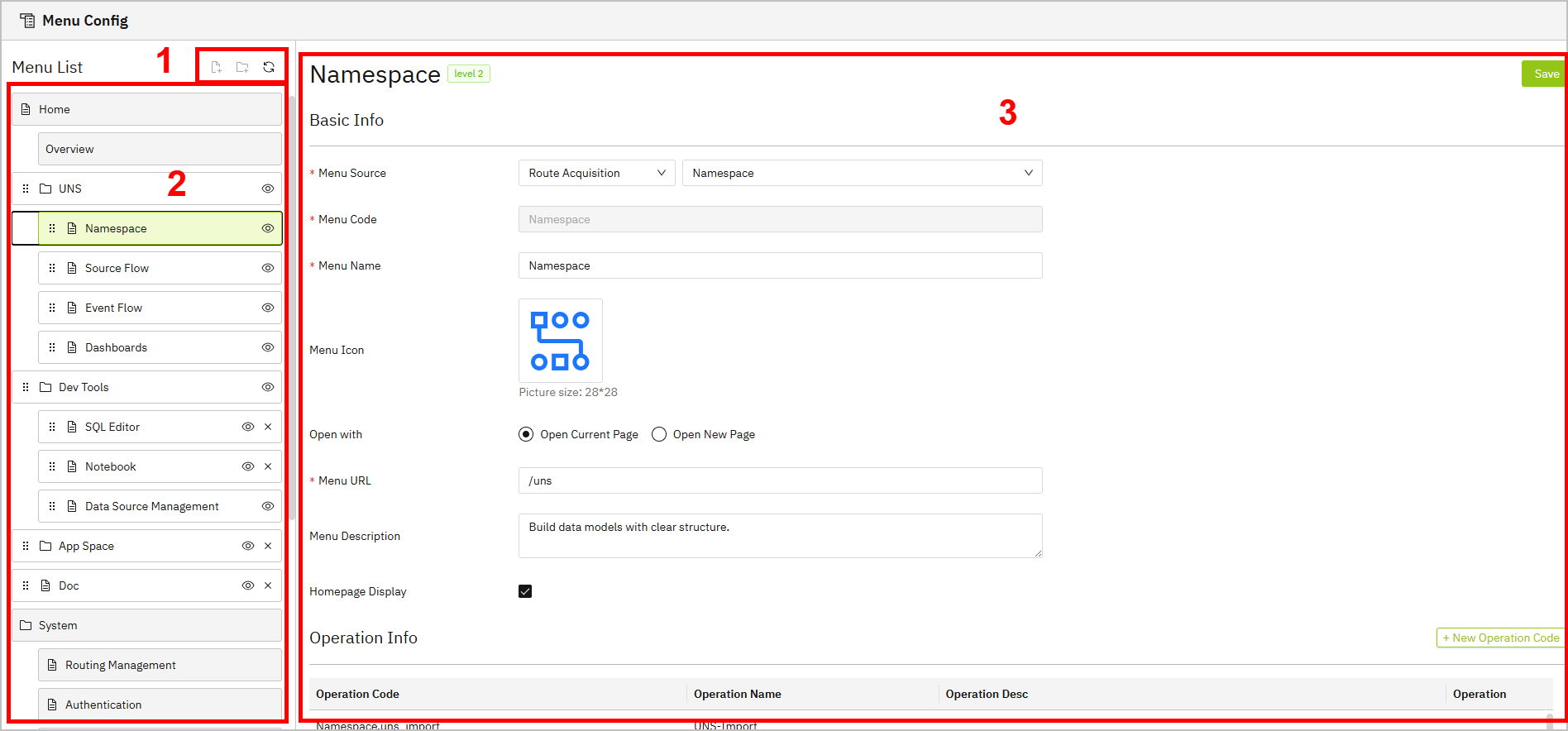
| No. | Name | Description |
|---|---|---|
| 1 | Operation | Add menu in floder/file structure and refresh the menu list. |
| 2 | List | Lists existing structured menus. |
| 3 | Information | Displays information of the selected menu. |
- Click
 on the top to add a menu folder.
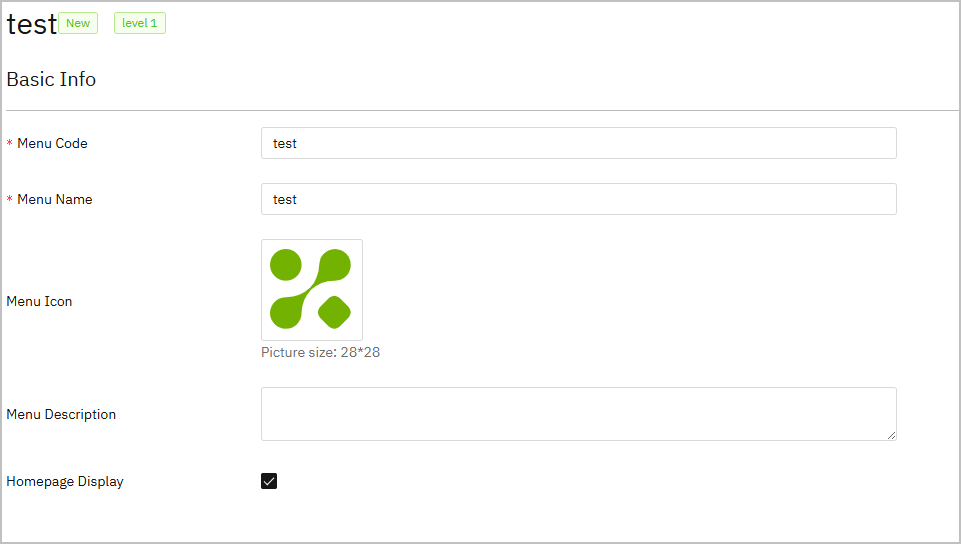
 - Enter the folder information and then click Save.
info
Menu code cannot be duplicated.
- Select the created folder, and then click
 to add a menu file.
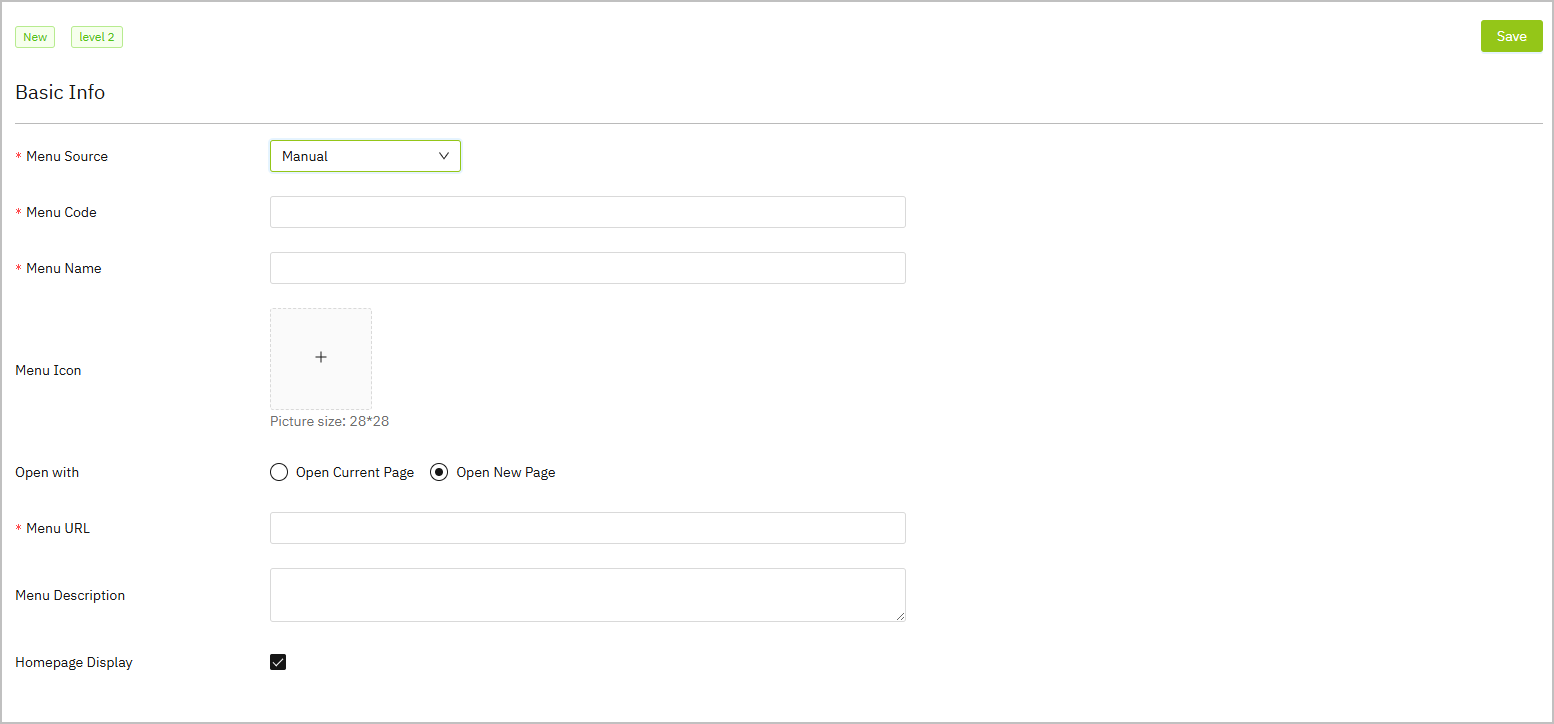
 - Enter the menu information and then click Save.
| Parameter | Description |
|---|---|
| Menu Source | Select menu source between manual addition and existing options. |
| Menu Code | Unique identification of the menu. |
| Open with | Directly open the menu on the current page or on a new page. |
| Menu URL | Access address of the added function module (menu). |
| Homepage Display | Whether or not to display the menu on the homepage. |
- (Optional) Go back to Home to check the added menu if it is set to display on homepage.
Editing Existing Menus
- Log in to Tier0, and then select System > Menu Config.
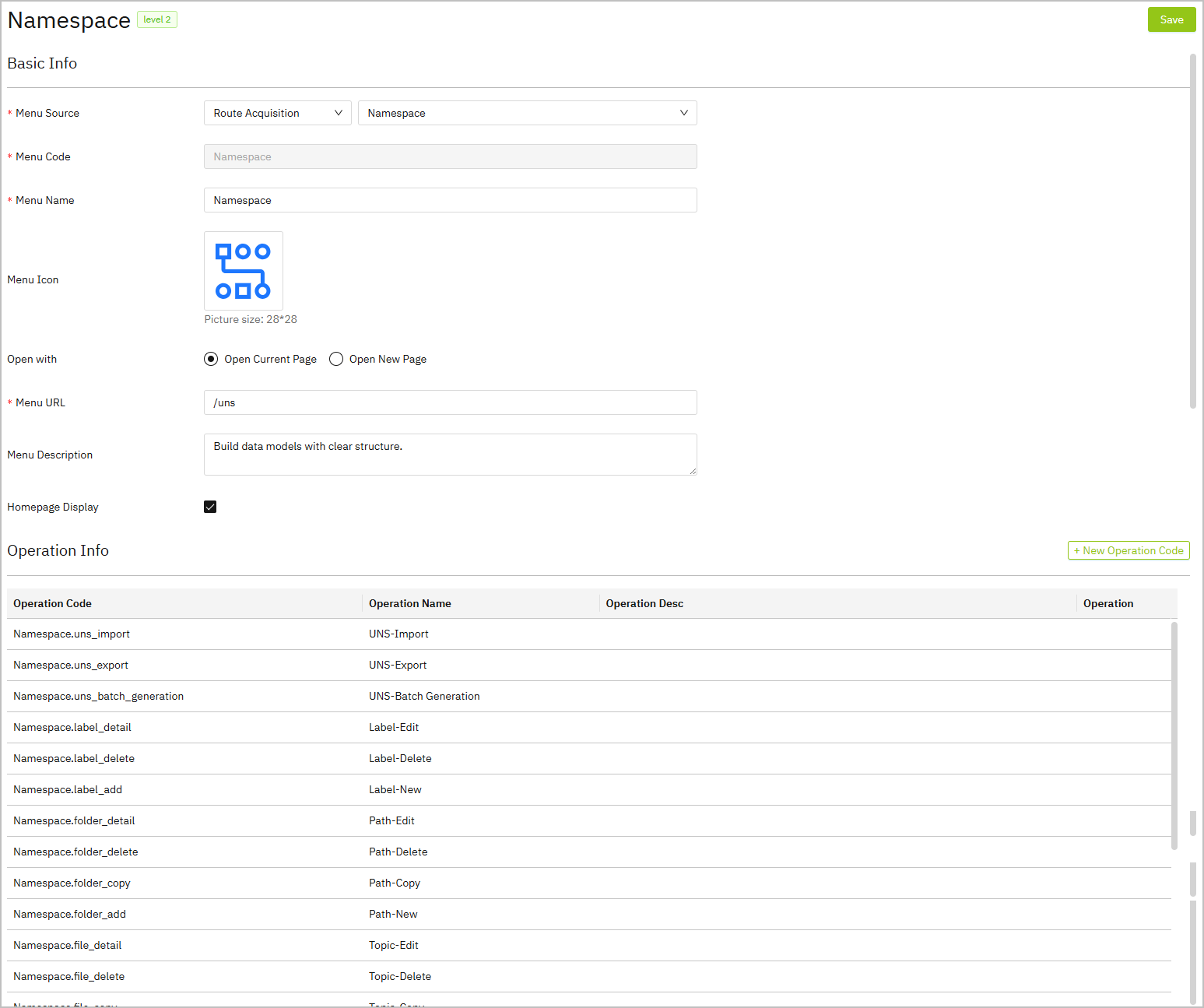
- Select a menu from the list, eidt its information on the right side, and then click Save.
warning
For original menus provided by Tier0, do not change the menu source, URL and operation code. Otherwise the module may not work properly.
Managing Menu Position and Visibility
- On the left list, drag a menu to change its position in the folder/file structure, and it will show on the homepage automatically.
- Click
 next to a menu to hide it from homepage.
 - Click
 to delete a menu.
warning
- Deleting a folder will delete all menus under it.
- Deleting a menu cannot be restored. Please proceed with caution.