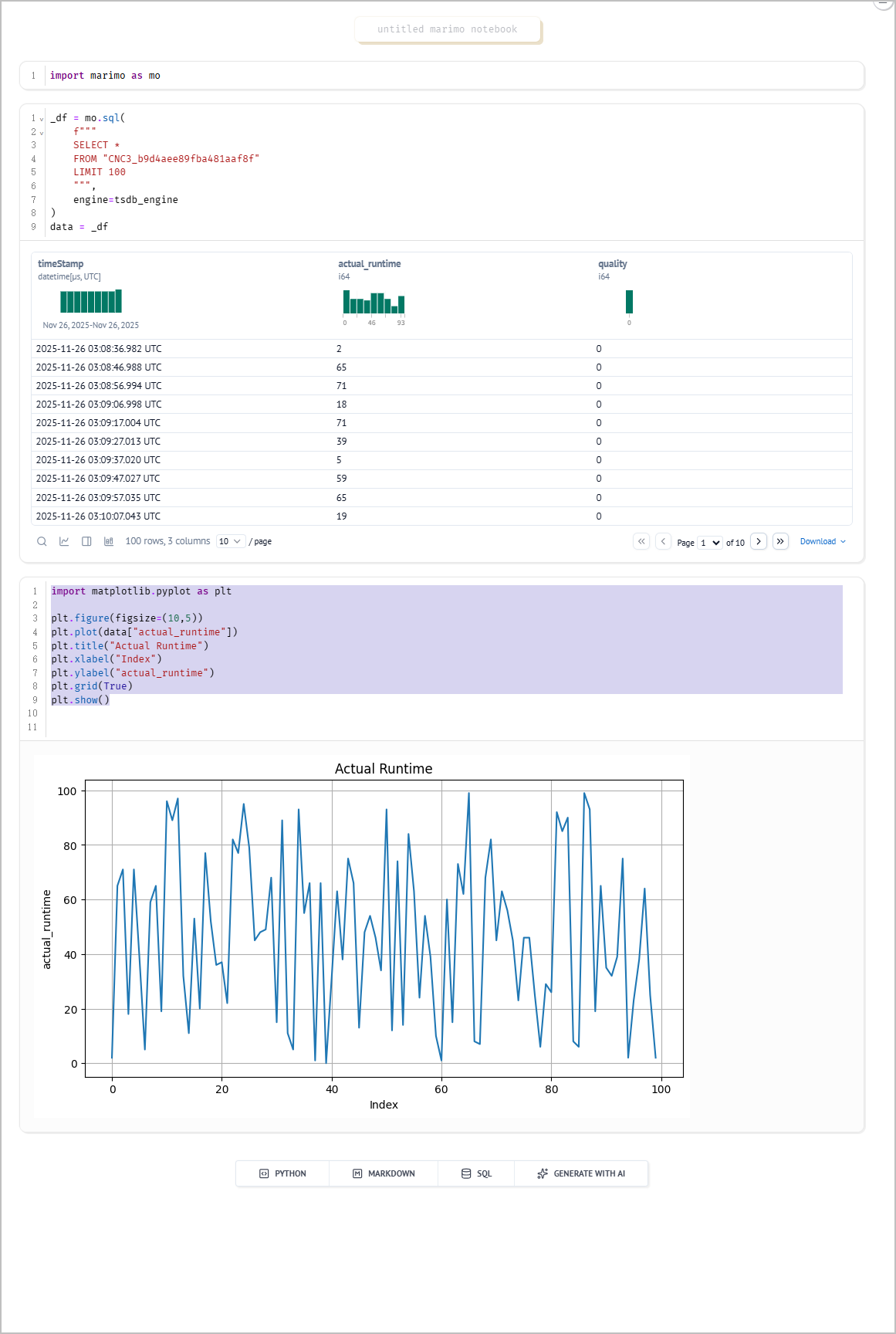
Tier0 adopts Marimo for easy python script usage. For example, you can train models, run SQL queries and design dashboards with data connected in Namespace.
Using Notebook to Run SQL Queries
note
Tier0 databases are initially connected.
- Log in to Tier0, and then select Dev Tools > Notebook.
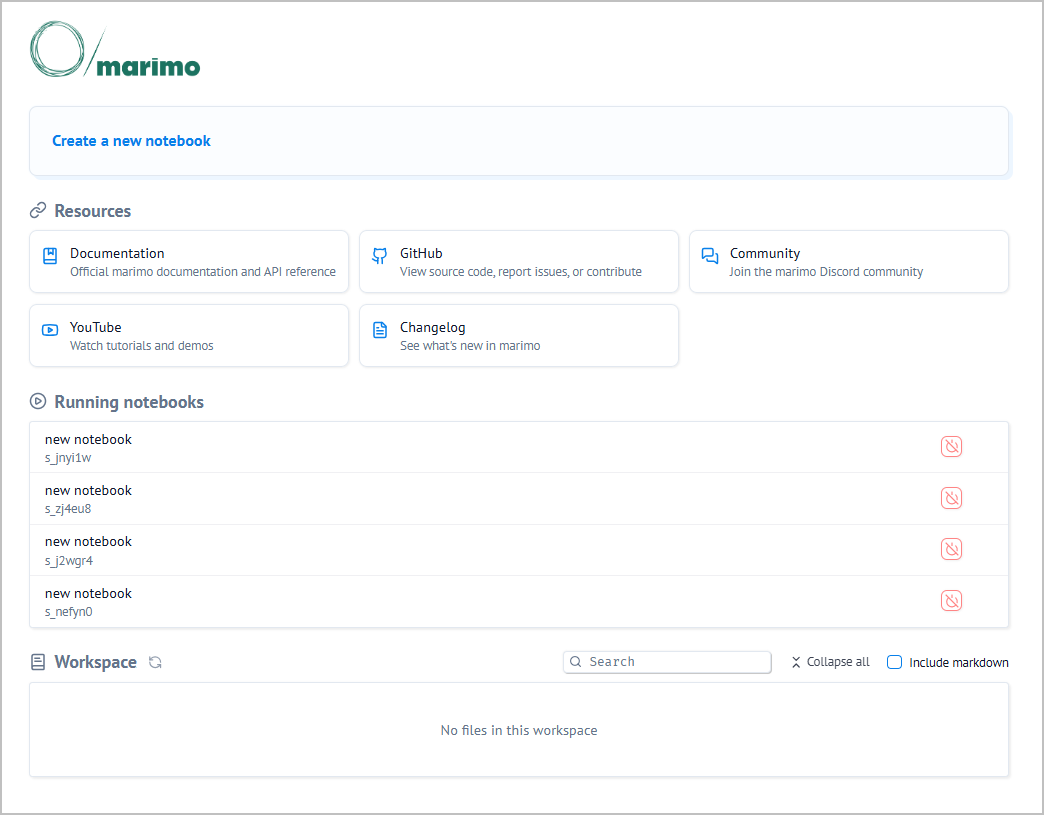
- Click Create a new notebook, and then click
 to run the first cell.

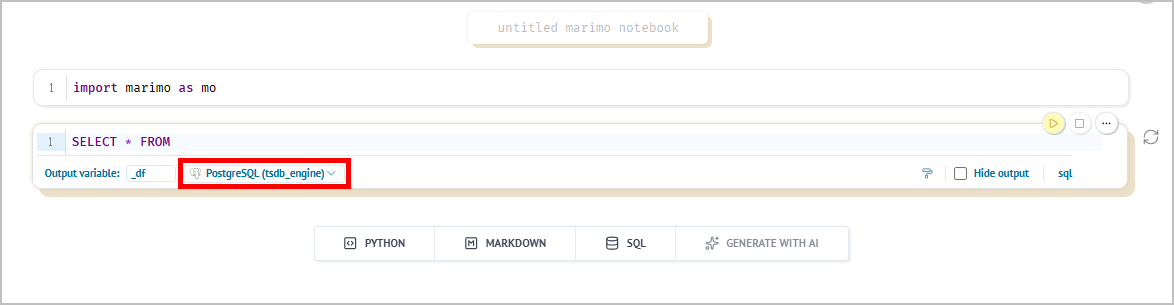
- Click SQL to add a new cell, and then select a connected database to run SQL statements.
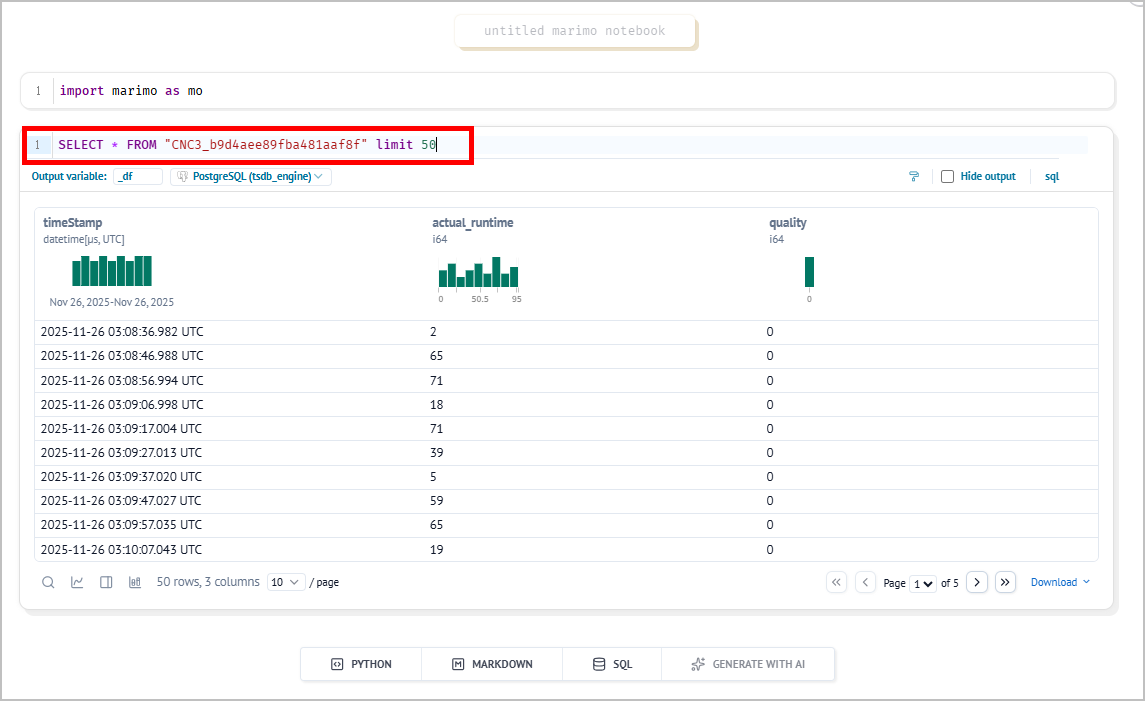
- Get the table name from topic Details under Namespace, and then write SQL statements.
tip
- Click
 on the left panel to view the list of connected databases.
 - Find the table you need, click
 next to the table name to generate SQL statements automatically.
Using Notebook to Draw Charts
- Log in to Tier0, and then select Dev Tools > Notebook.
- Click Create a new notebook, and then add the following 3 cells to draw a simple line chart.
- Cell 1: Import libraries
import marimo as mo
- Cell 2: Query data from the database
_df = mo.sql(
    f"""
    SELECT *
    FROM "table_name"
    LIMIT 100
    """,
    engine=tsdb_engine
)
data = _df
tip
Use a SQL cell to write queries and then click  on the cell end to switch the cell to Python. Make sure you assign the query result to a variable (e.g.
 data).
- Cell 3: Draw a line chart
import matplotlib.pyplot as plt

plt.figure(figsize=(10,5))
plt.plot(data["actual_runtime"])
plt.title("Actual Runtime")
plt.xlabel("Index")
plt.ylabel("actual_runtime")
plt.grid(True)
plt.show()
- Click
 at the lower-right corner to run all cells and view the chart.